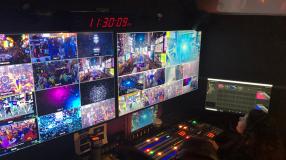
Monitoring a live production doesn’t always require full-resolution video—especially for team members working with limited bandwidth. Creating a lower-resolution multiview in Virtual Video Control Room allows collaborators to stay connected in near real time without stressing their internet connection.
To get started, create a cluster with transcoding enabled. Once the cluster is active, spin up a new stream and head to the Transcoding tab. Here, you can either select an existing preset or create a custom one tailored for lower resolution viewing. A preset like 240p is a great option for bandwidth-constrained monitoring.
After creating your preset, return to the stream settings and add a transcoding configuration. Select your source encoder (most streams will only have one) and apply the preset. While the configuration is being created, the status will briefly appear yellow before turning green when it’s ready to preview.
Next, head to the Multiview tab and create a new multiview. Assign your stream, then select the lower-resolution preset from the source dropdown. Once saved, open the multiview to confirm everything is working.
You’ll notice slightly reduced image clarity and a lower bitrate—but that’s the point. This setup keeps your team informed, connected, and in sync, even on slower connections.
Want to learn more about VVCR? Be sure to request a demo!